键盘和手柄手动飞行
需要:uBotAerial 0.1.x(含依赖 uBotCore),并启用引擎插件 EnhancedInput
用键盘或手柄手动飞无人机(uBot Multirotor Manual Input),了解三种飞行模式各发什么指令,以及怎样切换要操控的无人机。
下面的蓝图在每个 Tick 把当前摇杆量显示在屏幕上,用来检查输入有没有到达。三个示例蓝图的 Start with Tick Enabled 是关的(行为都在组件里),要先在「Class Defaults」里打开它,Event Tick 才会运行;也可以把这张图放在别的 Actor 里:
连线:
- Event Tick 的 执行,连到 Print String 的 执行
- ManualInput 的 ManualInput,连到 Get Manual Flight Axes 的 Target
- Get Manual Flight Axes 的 Return Value,连到 Break UBot Manual Flight Axes 的 UBot Manual Flight Axes
- Break UBot Manual Flight Axes 的 Forward,连到 To String (Float) 的 In Double
- To String (Float) 的 Return Value,连到 Print String 的 In String
Event Tick
UE 引擎 · 中文界面:事件Tick
Event called every frame, if ticking is enabled
输出
- 执行
- Delta Seconds
Float
查看参考AActor.ReceiveTick
ManualInput
组件或变量引用。在 Components 面板里把 ManualInput 拖进事件图即可得到它。
输出
- ManualInput
uBot Multirotor Manual Input对象引用
Get Manual Flight Axes
Target is uBot Multirotor Manual Input · UBotAerial
最近一帧经过死区处理后的各个轴。
输入
- Target
uBot Multirotor Manual Input对象引用
输出
- Return Value
UBot Manual Flight Axes结构体
查看参考UUBotMultirotorManualInputComponent.GetAxes
Break UBot Manual Flight Axes
UBotAerial
把 UBot Manual Flight Axes 拆成前、右、上和偏航四个轴。
输入
- UBot Manual Flight Axes
UBot Manual Flight Axes结构体
输出
- Forward
Float - Right
Float - Up
Float - Yaw
Float
查看参考Break:FUBotManualFlightAxes
To String (Float)
UE 引擎 · 中文界面:转换为字符串(浮点)
Converts a double value to a string
输入
- In Double
Float (double)
输出
- Return Value
String
查看参考UKismetStringLibrary.Conv_DoubleToString
Print String
UE 引擎 · 中文界面:打印字符串
Prints a string to the log, and optionally, to the screen If Print To Log is true, it will be visible in the Output Log window. Otherwise it will be logged only as 'Verbose', so it generally won't show up.
输入
- 执行
- In String
String - Print to Screen
Boolean - Print to Log
Boolean - Text Color
Linear Color结构体 - Duration
Float - Key
Name
输出
- 执行
查看参考UKismetSystemLibrary.PrintString
Is Controlling 返回这个组件当前是否在接管输入。切换操控另一架无人机,用 Get Player Controller 和 Possess:
连线:
- Event BeginPlay 的 执行,连到 Get Actor Of Class 的 执行
- Get Actor Of Class 的 执行,连到 Possess 的 执行
- Get Player Controller 的 Return Value,连到 Possess 的 Target
- Get Actor Of Class 的 Return Value,连到 Possess 的 In Pawn
Event BeginPlay
UE 引擎 · 中文界面:事件开始运行
Event when play begins for this actor.
输出
- 执行
查看参考AActor.ReceiveBeginPlay
Get Player Controller
UE 引擎 · 中文界面:获取玩家控制器
Returns the player controller found while iterating through the local and available remote player controllers. On a network client, this will only include local players as remote player controllers are not available. The index will be consistent as long as no new players join or leave, but it will not be the same across different clients and servers.
输入
- Player Index
Integer
输出
- Return Value
Player Controller对象引用
查看参考UGameplayStatics.GetPlayerController
Get Actor Of Class
UE 引擎 · 中文界面:获取类的actor
Find the first Actor in the world of the specified class.
输入
- 执行
- Actor Class
Actor类引用
输出
- 执行
- Return Value
Actor对象引用
查看参考UGameplayStatics.GetActorOfClass
Possess
Target is Controller · UE 引擎 · 中文界面:控制
Handles attaching this controller to the specified pawn. Only runs on the network authority (where HasAuthority() returns true). Derived native classes can override OnPossess to filter the specified pawn. When possessed pawn changed, blueprint class gets notified by ReceivePossess and OnNewPawn delegate is broadcasted.
输入
- 执行
- Target
Controller对象引用 - In Pawn
Pawn对象引用
输出
- 执行
查看参考AController.Possess
-
添加组件
示例蓝图里的
ManualInput就是这个组件。自己拼的无人机添加uBot Multirotor Manual Input即可,所属的 Actor 必须是 Pawn。 -
让玩家控制这架 Pawn
在「Details」面板把
Auto Possess Player设为 Player 0,或者在蓝图里调用Possess。组件只在本地玩家控制这架 Pawn 时接管输入,AI 控制器和远程控制器不触发它。 -
选飞行模式
Flight Mode要和无人机能接受的指令匹配,见下表。选中ManualInput,全部设置都在「Details」面板的 Manual Input 下: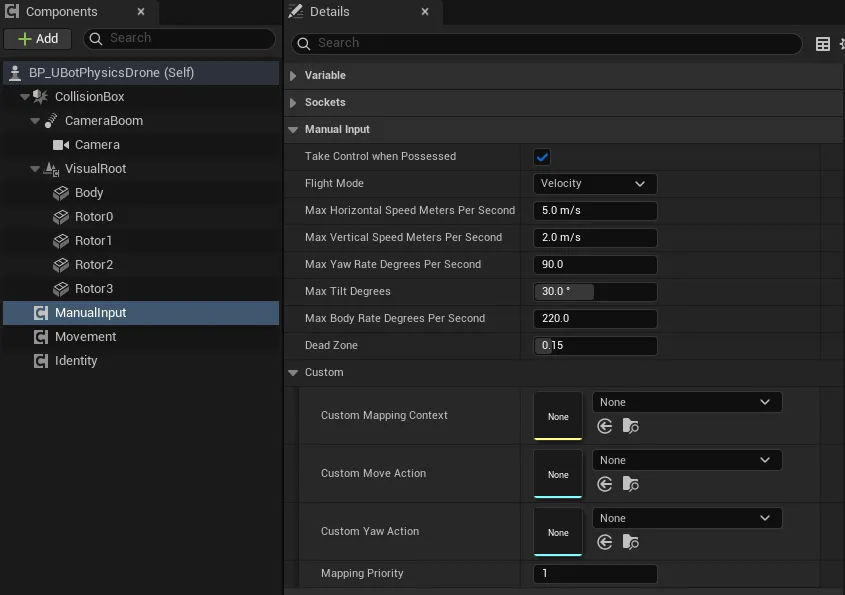
-
检查输入设置
工程的「Project Settings > Input > Default Player Input Class」要是 Enhanced Input 的玩家输入类,否则日志报一次错,无人机不响应按键。
键位如下,输入动作和映射上下文在运行时创建,不需要资产:
| 轴 | 键盘 | 手柄(模式 2) |
|---|---|---|
| 前 / 后 | W / S | 右摇杆上 / 下 |
| 右 / 左 | D / A | 右摇杆右 / 左 |
| 上 / 下 | Space / Left Ctrl | 左摇杆上 / 下 |
| 偏航右 / 左 | E / Q | 左摇杆右 / 左 |
地面只是碰撞面:贴着地面也能直接按方向键移动,按 Space 立刻上升。
Flight Mode 决定摇杆的含义:
Flight Mode |
摇杆含义 | 发出的指令 | 示例里用它的无人机 |
|---|---|---|---|
Velocity |
前后左右是航向系水平速度,上下是升降速度,偏航轴是偏航角速度 | 速度指令 | 导航、物理 |
Angle(自稳) |
前后左右是倾斜,偏航轴转动航向,上下是爬升率 | 姿态指令,不带推力,高度由无人机保持 | 无(物理无人机可选) |
Rate(特技) |
前后左右是横滚和俯仰角速度,偏航轴是偏航角速度,上下是爬升率 | 角速度指令 | 裸机架 |
满偏对应的量:
| 属性 | 默认值 | 作用 |
|---|---|---|
Max Horizontal Speed Meters Per Second |
5 m/s | Velocity 模式的水平速度 |
Max Vertical Speed Meters Per Second |
2 m/s | 升降速度 |
Max Yaw Rate Degrees Per Second |
90°/s | 偏航角速度 |
Max Tilt Degrees |
30° | Angle 模式的倾角,范围 0 到 60 |
Max Body Rate Degrees Per Second |
220°/s | Rate 模式的横滚、俯仰角速度 |
Dead Zone |
0.15 | 摇杆死区,死区边缘重映射为 0,范围 0 到 0.9 |
Take Control when Possessed |
开 | 关闭后组件不接管输入 |
水平两个轴合起来的长度限制为 1,所以斜向不会更快。
- 控制期间组件每帧发一条指令。
- 控制结束时,
Velocity模式发Stop Motion,其余模式发Release Attitude Command:无人机刹停并悬停,物理无人机在后一种情况下按Command Loss Action处理。 - 同时有其他发送方(例如 ROS)时,最后到达的指令生效。
Angle和Rate模式下,右摇杆向右是向右倾或横滚,向前是机头下俯,偏航轴向右是向右偏航。- 导航无人机没有姿态接口,选
Angle或Rate时日志警告一次。 - 示例蓝图的相机挂在弹簧臂上:臂长 120 cm,俯仰 −15°,只继承机体的偏航,所以物理无人机倾斜、翻滚时视角不会跟着晃。
- 要自定义键位,设置
Custom Mapping Context、Custom Move Action(前、右、上三个轴)和Custom Yaw Action,映射上下文要映射这两个动作;留空则用内置键位。
- uBot Multirotor Manual Input:全部节点和属性。
- 示例无人机与试飞关卡:哪个示例默认用哪种模式。
- 物理无人机的指令与控制模式:姿态和角速度指令。